Saving discovered music using AI
As a music enthusiast, I’m always discovering tracks across platforms. But managing a unified 'wantlist' for my Plex library, future purchases, or DJ sets has always been a challenge. Spotify, code exporters, screenshots in camera roll. There had to be a better way...

The problem I encountered
As a music enthusiast, I enjoy exploring a wide range of genres and artists. I collect music for various reasons: records I plan to buy later, tracks I want to add to my Plex library (I’m a big Plexamp user!), or songs I can already imagine including in a DJ set. Since I prefer to own the digital files and store them in my Plex collection, I need a "wantlist" to refer to occasionally and archive into my library.
The challenge I’ve faced repeatedly is the lack of a simple way to combine all the different sources where I discover music into one list. My usual sources include YouTube, Shazam, Spotify, Instagram comments or posts, and random webpages.
In the past, I relied on Spotify, saving everything to a large "wantlist" playlist. However, this approach had limitations: some music wasn’t available on Spotify, or the versions differed. Switching between apps also made the process cumbersome.
I once attempted to write a Go exporter to aggregate lists from various services (YouTube playlists, Spotify playlists, my Shazam collection). But like many side projects, the effort quickly became overwhelming, and I abandoned it.
My best attempt so far at automating it was to take screenshots and store them in a specific Apple Notes folder. This worked well in some ways: I had everything in one folder, accessible from all my devices, and could screenshot any service on my phone. But there was a big downside: my camera roll filled up with screenshots, making it harder to find other photos when I needed them. It resulted in huge clutter when scrolling to find a certain photo memory.
Automating it with AI & Shortcuts, and the Action Button
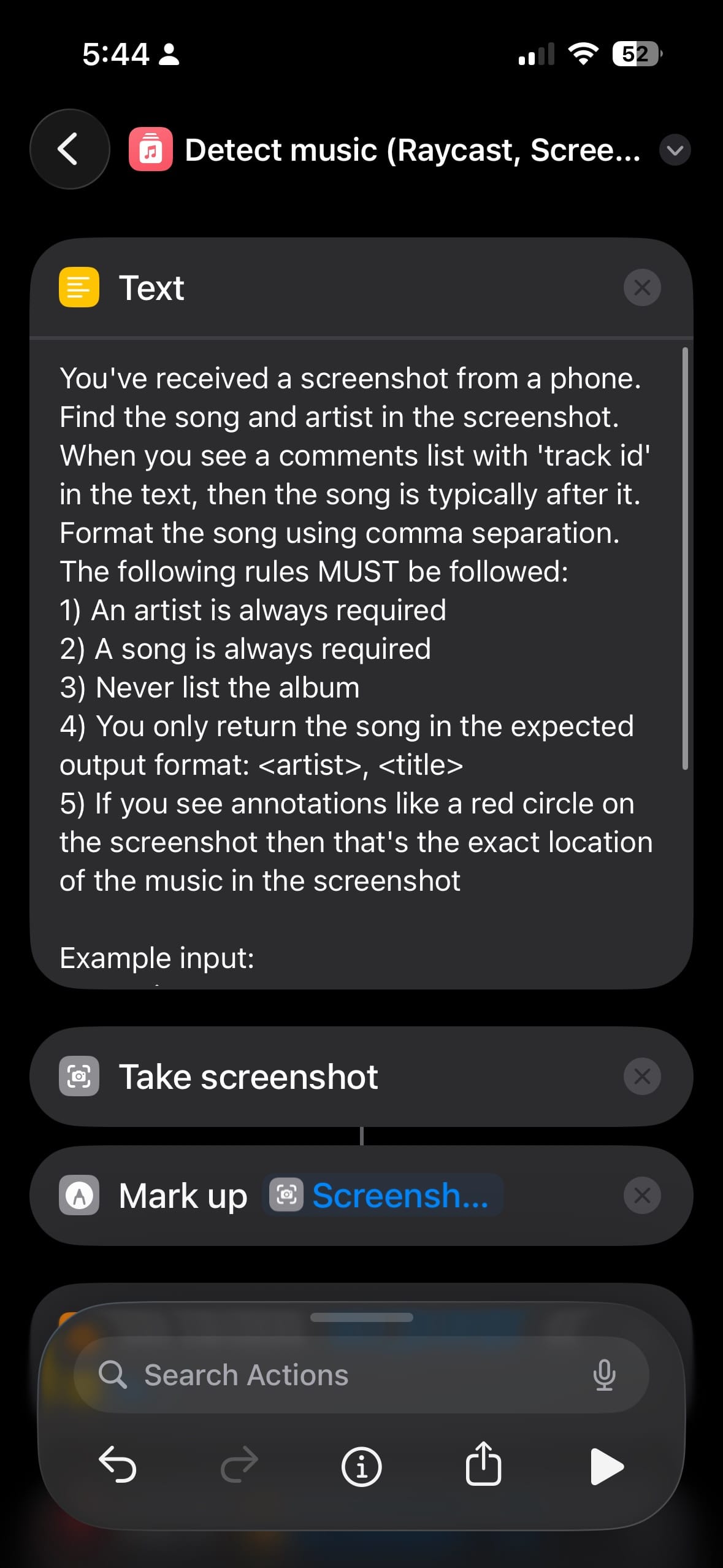
Becoming to annoyed recently, I decided to spend some time on making it better. I wanted to use AI to identify the music and store the results in a plain text Apple Note. Since I lovingly use Raycast AI on my phone, I created a Shortcut tied to my Action button to discover and save music:
- It takes a screenshot of my entire screen.
- It opens the screenshot for markup, so I can draw and guide the AI on where to look.
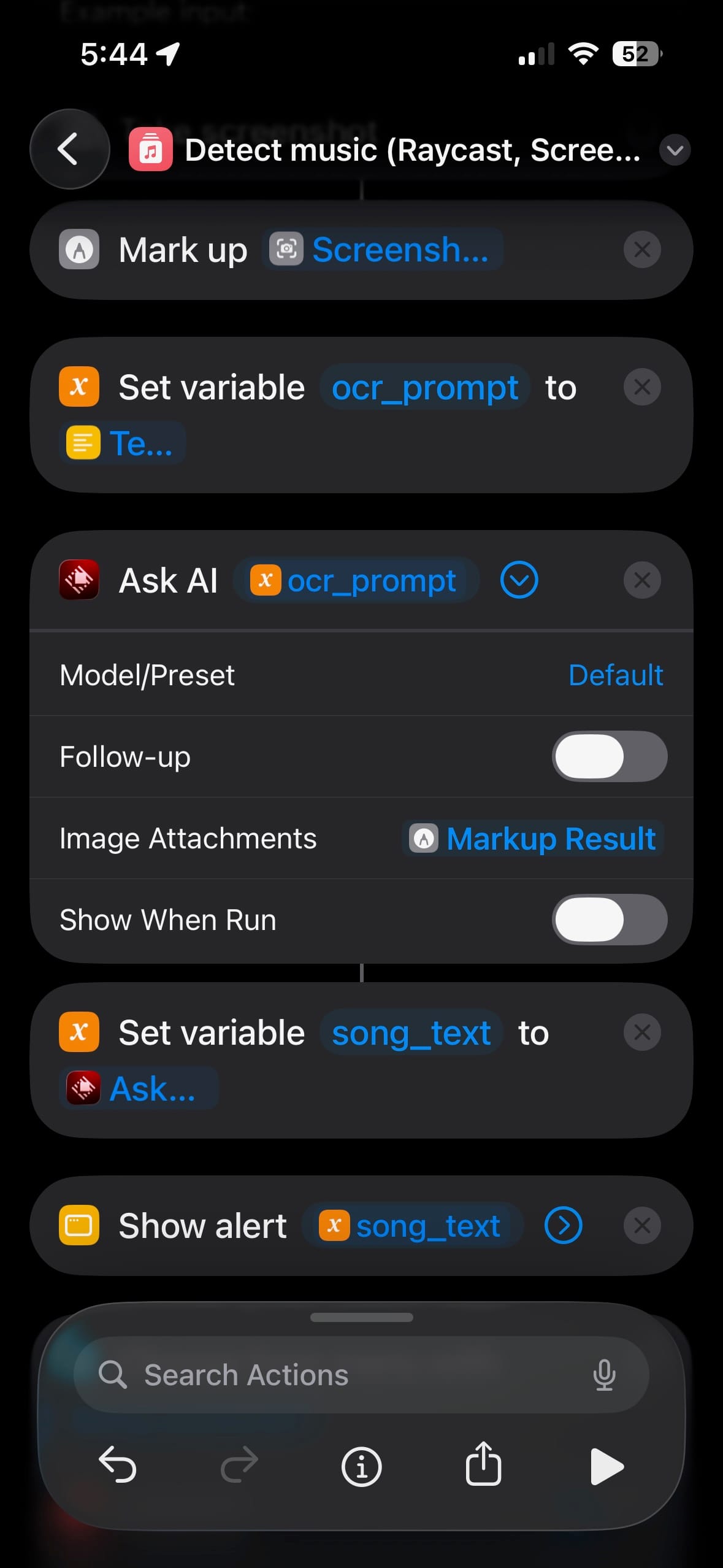
- It sends the screenshot, along with a structured prompt, to an LLM via Raycast AI. (Using Mistral 3 as my default LLM)
- The AI provides the music details, and I receive an alert as part of the Shortcut. If the result is incorrect, I can stop the Shortcut to not clutter up the note with incorrect results.
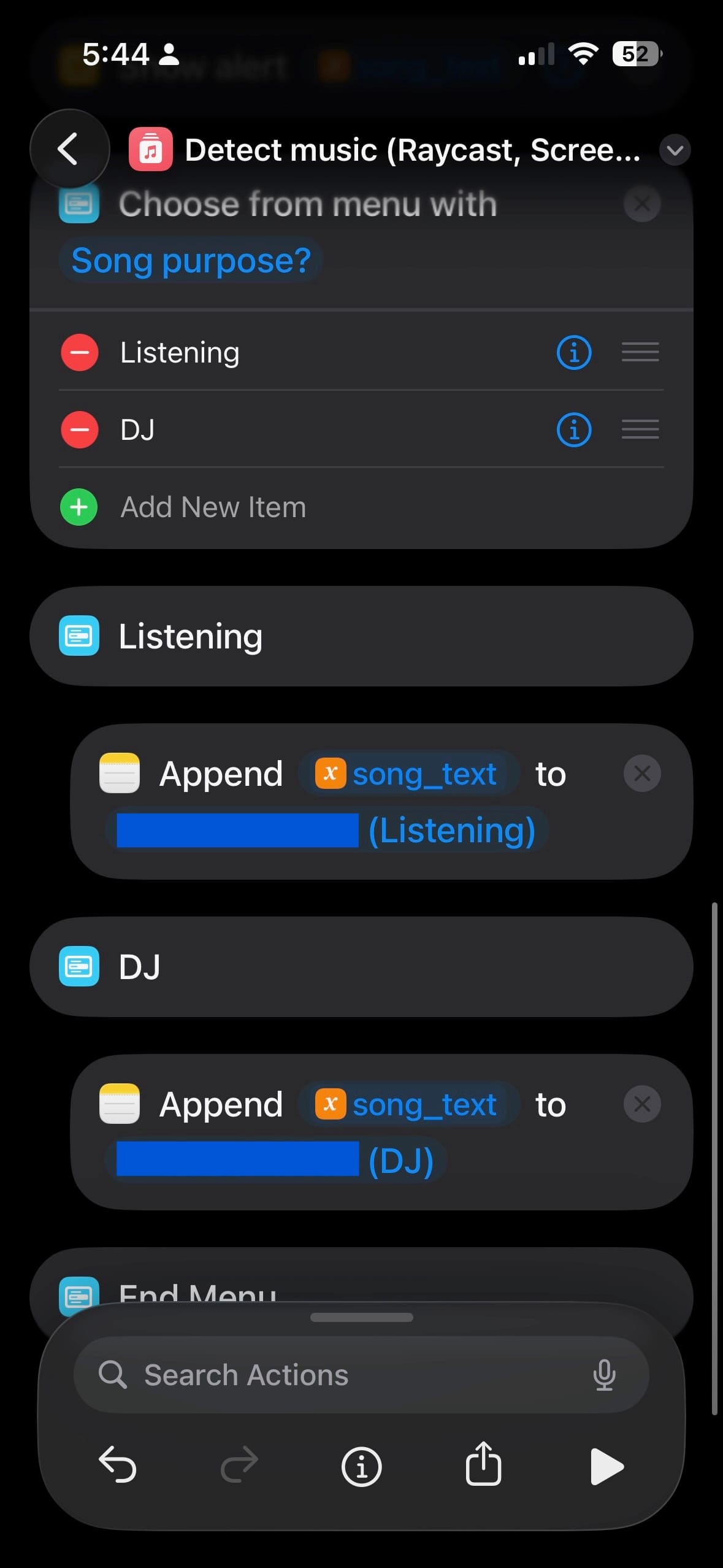
- If I continue, it asks for the purpose of the music and stores it in different notes based on that purpose.
The process now works smoothly! Uploading the image takes a little time, but I’m usually not in a hurry when doing this. If I do want quicker results, I adapted a Shortcut I found online to first use OCR on the screenshot and send the extracted text as a plain text prompt to the LLM.
End result
Here's a short screen recording of the Shortcut in action on a killer Rod Stewart song. It doesn't show the song being added to my note, but trust me it works 😉
Any questions? Like a copy of the Shortcut? Just send me a message and I'll help 👋